
Strava import
Instead of supplying files yourself, Dreeve pulls your activities straight from the Strava API, and gets a few things that only Strava has: segments, segment efforts, challenges and trophies.
To use it, set:
IMPORT_MODE=stravaApiPrerequisites
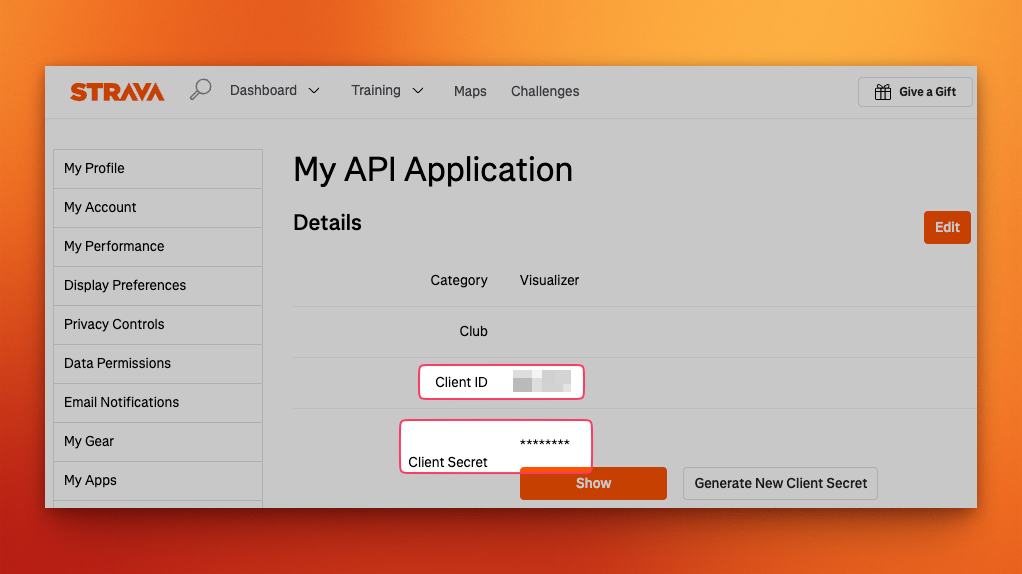
Section titled “Prerequisites”You need a Strava account, and a Strava API application to get a client ID and client secret.
- Navigate to your Strava API settings page.
- Copy the
client IDandclient secret, these go into your.env. - Make sure the
WebsiteandAuthorization Callback Domainare set to the URL you host the app on. You can configure these with the Edit button on the top right-hand side of the page. - Add an App Icon. You’ll find this setting at the bottom of the API settings page.
Map visibility
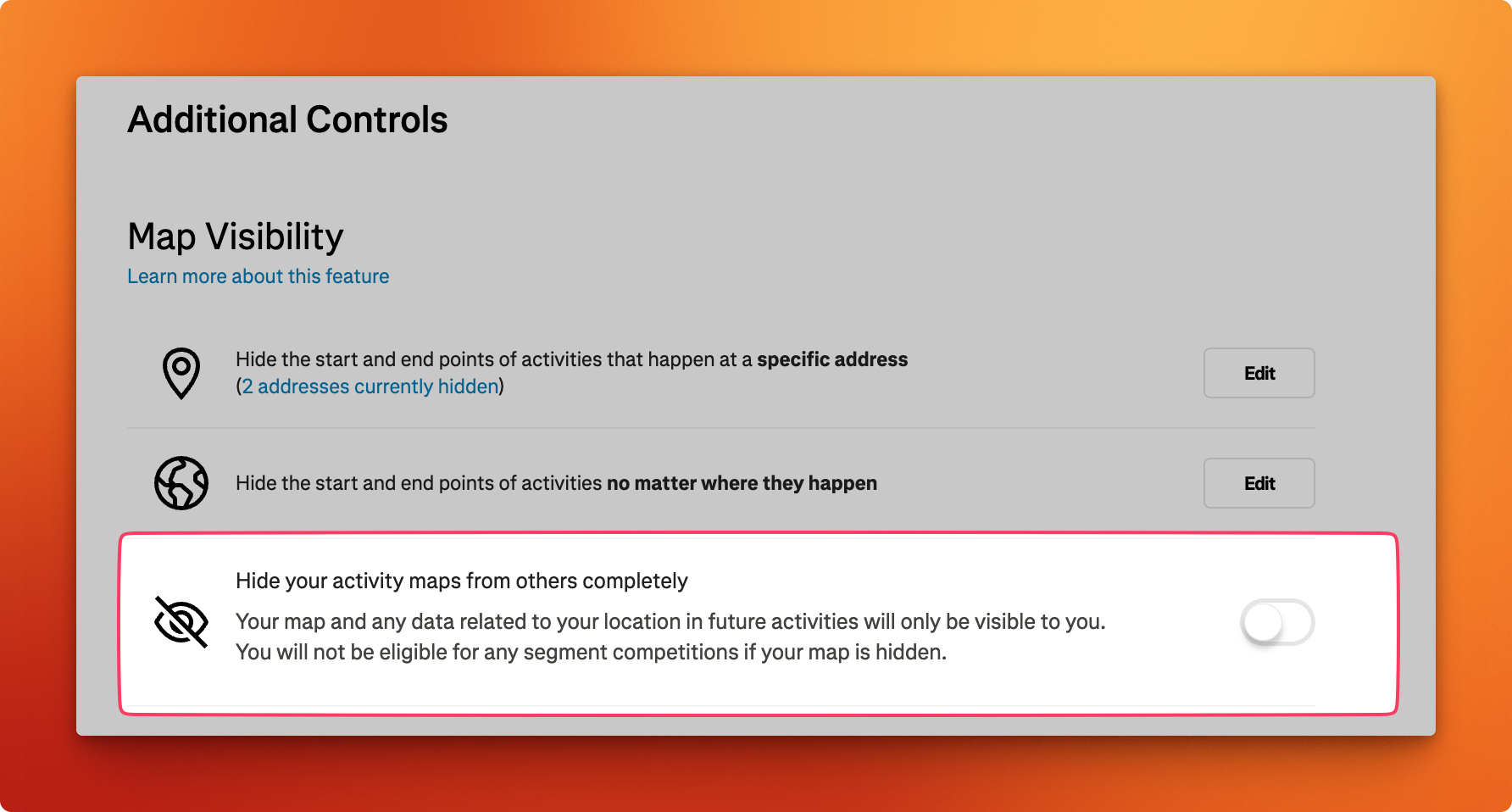
Section titled “Map visibility”To see maps of your activities in the app, your Strava map visibility settings have to allow it. Go to your Strava account settings and make sure Hide your activity maps from others completely is not enabled.
Configuration
Section titled “Configuration”Add your credentials to .env. Leave STRAVA_REFRESH_TOKEN as-is for now, you obtain it in the next step.
IMPORT_MODE=stravaApi
STRAVA_CLIENT_ID=YOUR_CLIENT_IDSTRAVA_CLIENT_SECRET=YOUR_CLIENT_SECRET# Obtained through the app's OAuth flow, see below. Leave unchanged for now.STRAVA_REFRESH_TOKEN=replace-me
Remember to recreate your containers after editing .env. Restarting is not enough.
Obtaining a Strava refresh token
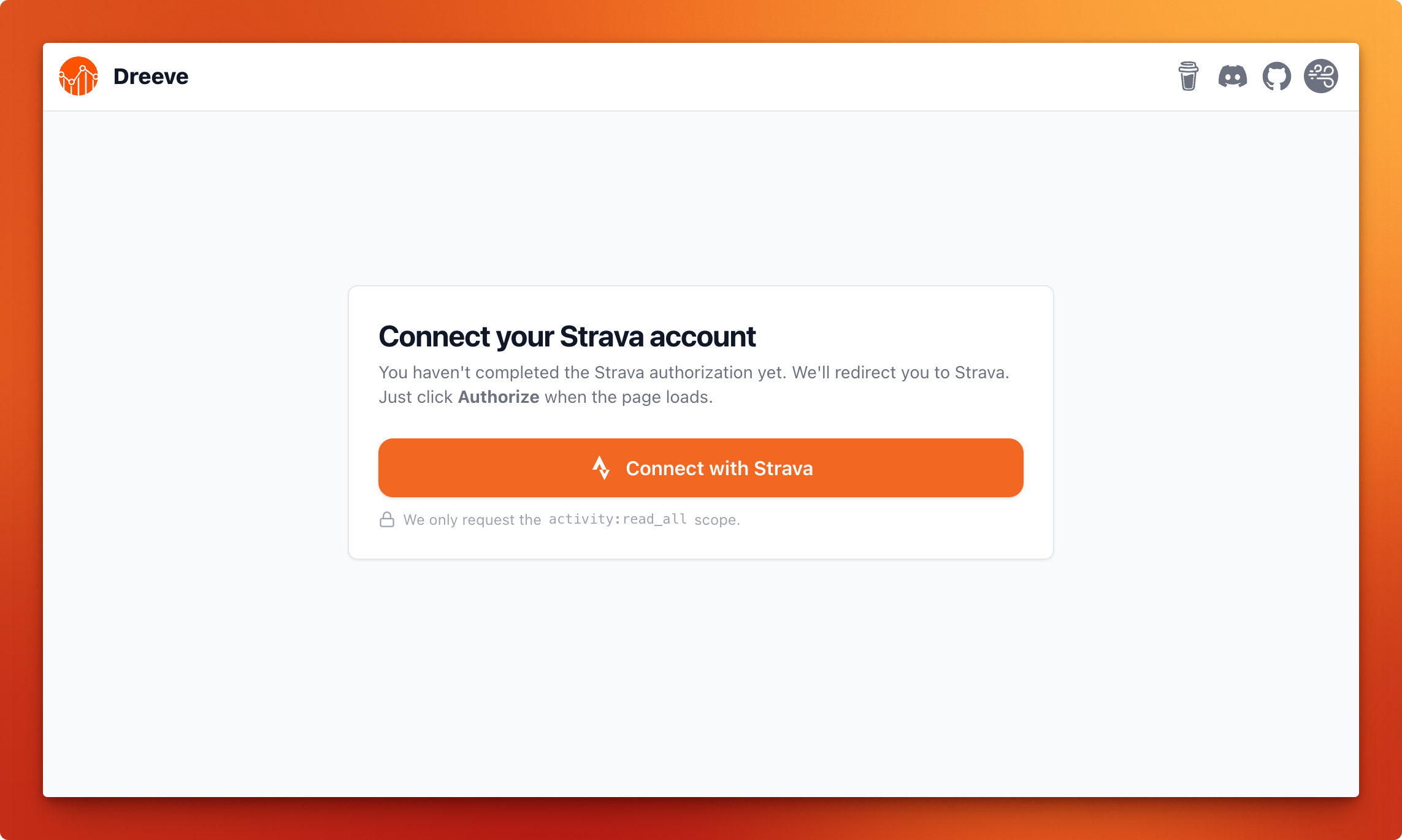
Section titled “Obtaining a Strava refresh token”The first time you launch the app, you will need to obtain a Strava refresh token.
The app needs this token to be able to access your data and import it into your local database.
Navigate to http://localhost:8080/. You should see this page, just follow the steps to complete the setup.
Importing
Section titled “Importing”> docker compose exec app bin/console app:import:stravaThe first run takes a while. Strava enforces API rate limits and Dreeve deliberately paces itself to stay inside them, importing a bounded number of activities per run and picking up where it left off next time.